Articles by "Apps"
Showing posts with label Apps. Show all posts

WhatsApp users who update to the latest version of the messaging application on iOS will find a new configuration lurking in the Privacy menu that adds support for Apple's biometric authentication technologies.
Top 10 Best Keyboard Apps For Android - 2019

Android became quite popular because the Google Play store offers applications in each and every field. Android is also very popular in the purpose of the games. Because it provides applications in each and every one of the fields in which we can think. But for a better user experience, we use startup apps for Android to change the look of Android.
Easy Ways to Delete Google Maps History

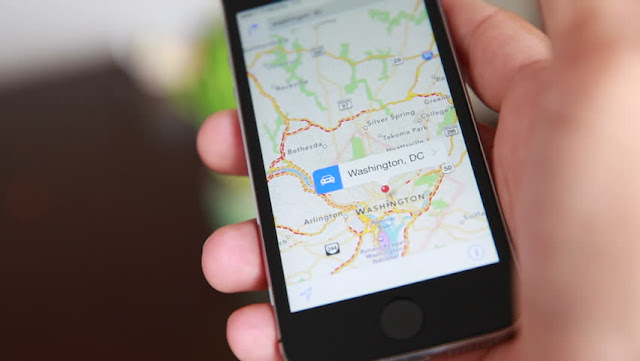
Google Maps is an application made by Google that is inseparable from users of Android, iOS, and computer smartphones.

Usually this Google Maps will be used for daily activities or will travel to other areas that have never been visited. With Google Maps will make users know the easy route to get to the location.
How to Share Spotify to Instagram Stories

Spotify is one of the popular music streaming services that are widely used by people from various countries, You could say Spotify presents songs from various genres, countries, and singers from all over the world. Of course this is what captivates users to always subscribe to Spotify every period, both monthly and yearly.

Social media seems to be mushrooming among smartphone users, especially for Android cellphone users. Almost all smartphone users have at least what is called social media, such as Whatsapp, both for communication, work needs, and even selling needs.
How to Restore a Deleted WhatsApp Message

Actually, every day the WhatsApp application on our device always makes backups automatically. With this, users don't need to worry when accidentally deleting message messages on WhatsApp.

Virtual Private Network or commonly abbreviated as VPN is widely used to open sites that are blocked or secure our internet connection so that our original IP address is not tracked and of course safe from hackers.
The Best Data Backup Application for Android - XPCTricks

On some Android smartphones , bootloop often happens and that is very annoying. Often backing up data is of course very necessary so that some files or something important that is on your smartphone are saved.
How to Use Sticker Features on WhatsApp - XPCTricks

WhatsApp is one of the many messaging-based applications that are very popular among the people of Pakistan, because it can make it easier for users to communicate with fellow users, replacing SMS (Short Message Service) or short message services that are quite costly.
How to Overcome Code Play Store Error

Usually this error appears when we want to download the application we want, almost everyone has experienced an error code when downloading an application on the Play Store . If you are one of them you don't need to worry, because here I will discuss the error codes one by one and how to overcome them.

How to Overcome Code Play Store Error


If you are downloading an application or game and this code appears, of course you will feel upset. How come? You have tried several times but still the Error Code still appears, even though you have rebooted your Smartphone.


Error Code 194


This error is very common in Smartphone users, the way to overcome it is very easy.

  1. Enter settings, then to Applications.
  2. Search for the Play Store Application.
  3. Open App Details then press Force Stop (This serves to force the Play Store to close)
  4. After that you Clear the Data Play Store.

After you have done the above method, you have to do it again the same way on Google Play Service. If you still can't, you just need to Install Google Play Store with the new version.

Error Code 504


  1. Please enter Settings / Settings.
  2. After that, go to the Application / Apps.
  3. Select All.
  4. Next you search Google Play Store.
  5. Select Clear Cache and Clear Data.
  6. You need to do the above method for the Google Services Framework.


Error Processing Purchase DF-BPA-09 Error Code


How to solve the Error Code that is very easy, because unlike the two Error Codes above, you only need to Clear Data on the Google Services Framework

  1. Enter Settings.
  2. Select the Application / App Manager menu.
  3. Search for Google Services Framework.
  4. After that you Clear Data.


Error Code 495


How to resolve the Error Code which is the same as the one above but there are several different things, here we are not only related to Google Services Framework but with Google Account and Google Play Store itself.

  1. Enter Settings.
  2. Select the Application / App Manager menu.
  3. Search for the Google Play Store.
  4. After that you Clear Data.

Do the same way on Google Services Framework, after you do Clear Data on Google Play Store and Google Services Framewok. Next you do this:

  1. Enter Settings.
  2. After that, choose Account.
  3. Then delete your Google Account.
  4. Next you Reboot your Smartphone.
  5. If so, re-enter your Google Account by going to Settings> Accounts> Add Account> Google Account.


Error Code 941


As usual, the way to solve the Error Code is very easy, no exception to this Error Code 941.

  1. Enter Settings.
  2. Select the Application / App Manager menu.
  3. Search for the Google Play Store.
  4. After that you Clear Cache and Clear Data.
  5. Then you come back, then look for the Application Download Manager in our Application Manager, After that you Clear Cache and Clear Data.


Error Code 491


The fix is ​​very easy:

  1. Remove Google Account from your Device.
  2. After that you reboot your device.
  3. If it has been rebooted, you re-enter your Google Account.
  4. Enter Settings> Apps> Google Service.
  5. Finally you Clear Data and Force Stop.


Error Code 498


The cause of Error Code 498 is Interrupt while Downloading on the Play Store. Usually this is caused by the cache on the device is full, the only way is to:

  1. Delete all applications and files that are not used
  2. Then you turn off your device
  3. After that you enter into recovery mode by pressing Volume Down + Power + Home simultaneously.


Error Code 919


The thing caused by this Error Code is that we can download the application on the Play Store but cannot open it. Usually this happens because there is no more empty space on our device, the way to deal with it is very easy. You just need to delete the application that is rarely used and is not used.

This is How to Cope with Code Play Store Error , Actually there are still many Error Codes that I will discuss next.
How to Activate Location Services on iPhone

When you first install the application on the device, you will sometimes be asked to set certain access permissions, so that the application can run properly.

In this case, you can choose Allow to make the application run and access various information from the device. Or, you can choose Don't Allow if you don't want your information to be accessed by the application.

You also need to do this when installing applications on the iPhone device . And one of the access that is usually requested is access to information from Location Services.

Well for those of you who don't know how to activate Location Services on an iPhone device, you can follow the steps in the review on how to activate the following.

How to Activate Location Services on iPhone


To enable location settings on iPhone devices, you only need to enter Settings, then Privacy, and enter Location Services. Next, you can activate the Location Services slider button to the live position.

In addition, through this Location Services settings menu, you can also set location access for each application. For this, you can scroll the screen down and tap the application that will be set to access the location.

There are three types of location access options that can be selected in this case. These three options include the Never, option When Using the App, and the Always. Never

Option can be selected for those of you who want to prevent access to information to Location Services that are carried out by certain applications installed on your device.

Options When Using the App can be selected for those of you who want to allow certain applications, which are running or using the features on the screen, to be able to access information from Location Services.

Options You can always choose for those of you who will allow certain applications to be able to access information from Location Services, both when the application is running on the screen and when walking behind the screen.

Keep in mind, because Location Services information includes personal data that should not be distributed arbitrarily, you must be careful in arranging permission to access the Location Services mentioned above.
How to copy text that cannot be copied on Android

Sometimes we want to copy sentences or text in an application on Android. However, not all applications allow this. An example is Instagram. We cannot copy captions, comments and some other text in the short photo and video sharing application.

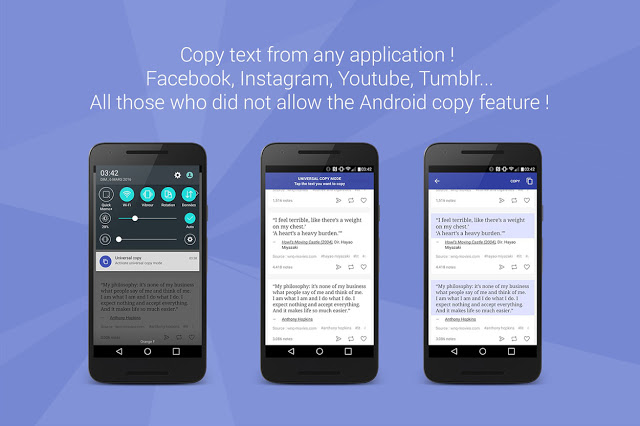
But calm down, there is always a solution for every problem. One way is to use an application called Universal Copy.

Just as the name suggests, with this application we can copy text that is anywhere on Android.

Even though the text cannot actually be copied.

If you are interested, you can follow the method below.

#1: Download the Universal Copy application first on the Google Play Store. Free of charge

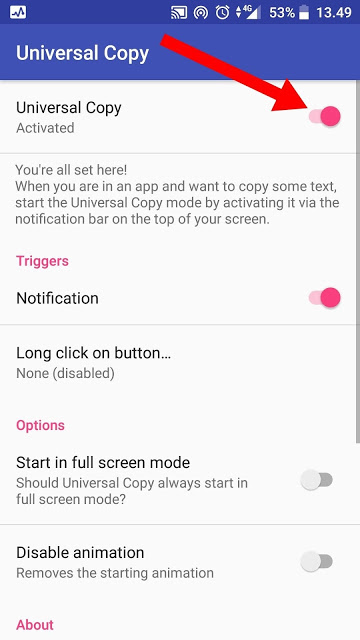
#2: If Universal Copy has been installed on your smartphone, immediately open the application. Then activate it by sliding the top slider.


#3: Now you will see there is a Universal Copy menu in the notification bar. Touch the menu if you want to copy a text on Android but can't copy it. In this example I will copy sentences on Instagram (in the normal way, we can't copy Instagram captions).

#4: After the Universal Copy menu is clicked, you will see a blue (or purple) frame around the screen. Then touch the text or sentence you want to copy, if you just touch the copy logo in the upper right corner.

#5: Finish. Now you can copy the sentence to Microsoft Word, WhatsApp, SMS, or Email.

So, if you want to copy sentences from applications that can't copy the text, you can use Universal Copy.

That way you don't have to type it manually just to copy.
How to Add Gesture Features on a Smartphone

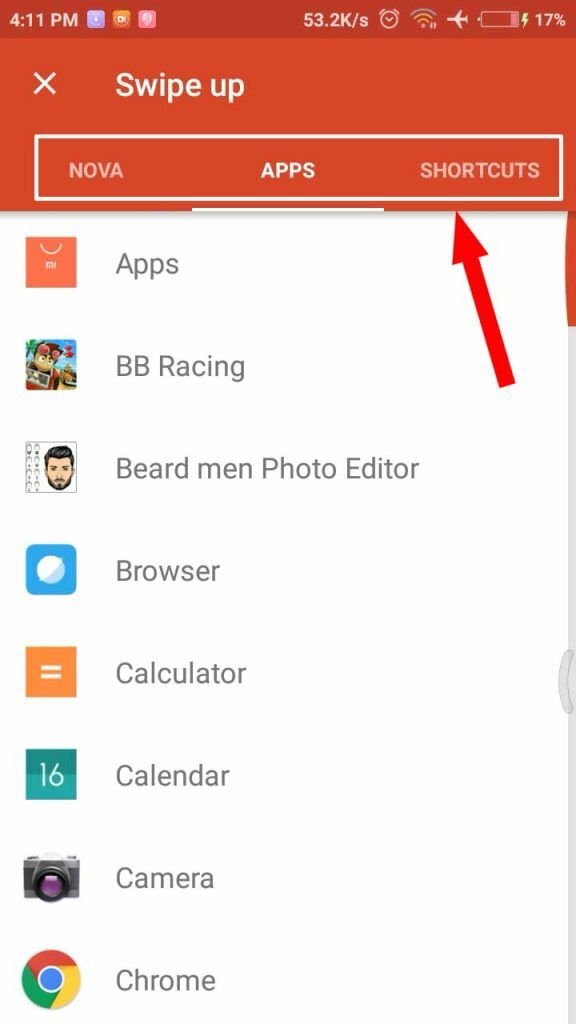
Gesture is a feature where when you wipe the screen, it will immediately open a particular application without touching the application icon. Gesture functions similar to a shortcut if on a PC. With the gesture feature, of course you can be faster in opening applications, especially favorite applications that you use often.

Well, to get this kind of gesture feature, you can use an application launcher named Nova Launcher Prime.

The following is the complete tutorial.

#1: You need a special launcher named Nova Launcher Prime, please download it on the Google Play Store.

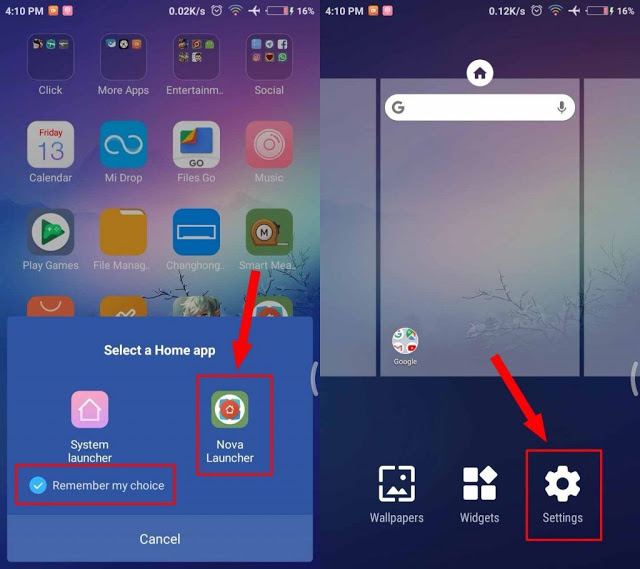
#2: If it has been downloaded, make sure you use Nova Launcher as the main launcher. The trick is to touch the home button, then select Nova Launcher. Then select the Settings menu


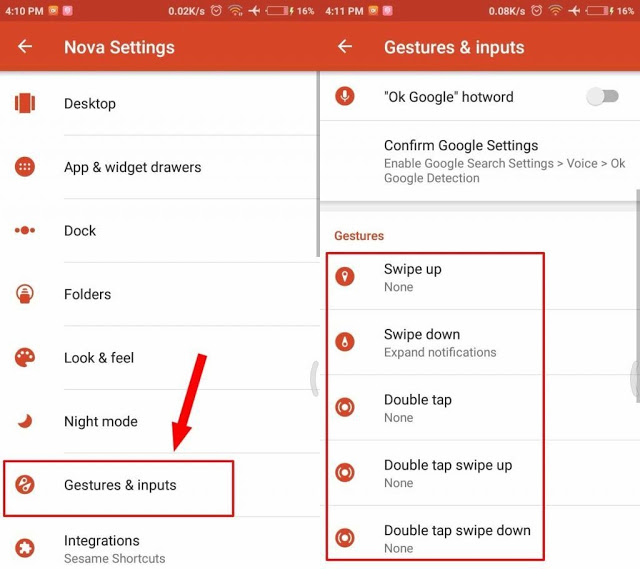
#3: Then select the "Gesture & inputs" menu, then scroll down and set the action to be opened from each gesture. There are swipe ups, swipe down, double tap, and others.


#4: Following is an example of a swipe up gesture, you can choose to open an application or game.


Finished. Please set each gesture to your liking.

Now each time you move the screen up, down, left or the other will open a certain application according to the one you selected in the settings above.

Although classified as a newcomer application because previously only spread locally in China, the Tik Tok application has managed to capture the attention of the Pakistani people. and Worldwide

For those who don't know, Tik Tok is a short video-based social media platform that provides a variety of features, including music and special effects to beautify videos before sharing.

This application is available for free for Both  Android and iPhone users and can be downloaded via the page on the Google Play Store for Android  and iOS from App Store. You only need to use a Google, Facebook, Line, or Instagram account to enter this platform.

But in the meantime, even though this application offers a variety of interesting content to follow, regardless of any reason, some of you must have wanted to delete their Tik Tok account.

Well for those of you who have this desire, you can actually do it as easily as registering an account to the platform. You can follow a few steps below.

As an important note, after deleting an account, you will lose access to the account you have, including videos and in-app purchases that you have done.

How to Permanently Delete a Tik Tok Account


  1. First of all, you only need to visit the Tik Tok account profile page that you want to delete
  2. After that, tap the menu icon in the upper right corner of the page screen
  3. If several options appear, select the Privacy and Settings menu
  4. In the Privacy and Settings page, then select the Privacy and Safety option
  5. If so, select the Delete Account option at the bottom of your own
  6. If a pop-up appears confirming Delete Account, select the Next button
  7. After that, you will automatically be thrown to the Delete Account page which contains an explanation of what happened after deleting Tik Tok
  8. Read and understand the exposure, after that you can press the Continue button if you are ready to accept the risk
  9. If the confirmation appears again, select the Delete Account option

By following the steps above, your account will immediately be deactivated immediately and will not be seen by other accounts. The time needed for this process is 30 days. During these 30 days, you can reactivate the Tik Tok account that you deleted by logging in to the account. But after that, the account you have will be completely permanently deleted.