Articles by "Instagram"
Showing posts with label Instagram. Show all posts
Easy Ways to Remove Followers on Instagram

Now Instagram is one of the most popular social networks in the world with a large number of users.
You could say Instagram users can upload and showcase their best photos on this social network. Instagram itself has @ for account names and # to mention a theme like Twitter.

How to Download Images from Instagram

As an image-based social media platform, Instagram stores lots of beautiful images that are tempting to download. But unfortunately, there is no download feature on the platform.

Therefore, to do so, you must use a third party application, which is currently quite a lot in the Google Play Store.

However, you must be careful, especially in applications that request Instagram username and password to do the process. Because it could be, the application only wants to steal your personal data.

In my opinion, you can choose a third-party application that relies on the principle of copy-pasting the URL, if you want to be safer when downloading images from Instagram.

But actually, using the copy-paste URL principle you don't need a third-party application to download images from Instagram. You can use your device's default browser.

How to Download Instagram Images Using the Default Browser


  • First, open the Instagram account you have, then search for the image you want to download.
  • After that, you can touch the three-point option in the upper right corner of the image.
  • If several options appear, look for the Copy Link menu , and select the menu.
  • Open the browser application on your mobile device, in this case I use Google Chrome which is the default browser on my device.
  • Open the https://downloadgram.com address through the browser that you have opened.
  • If the DownloadGram page has been successfully opened, paste the photo link that you copied earlier into the column provided.
  • After that, click the Download button.
  • Wait a few moments, if the Download Image button appears (not the previous button) click the button.


How to Download Images from Instagram

If you have passed a few steps above, the browser will automatically download the images from Instagram that you want.

However, there are a number of things you need to pay attention to when using this method to save images from other people's Instagram. One, this method does not apply to several accounts, especially locked accounts.

In addition, you also have to respect the work of others by not using the results of the images stored as you wish, you must be wise in this matter.
How to not be seen online on Instagram

Usually many people interact every day on Instagram, either uploading new photos on the timeline, video calls, making stories, and chatting. But sometimes people who do n't want to be seen while online on Instagram can use social media without interference.

For example, there are often other Instagram users who chat during working hours so it is very annoying. Surely you want the activity itself on Instagram is unknown to other users.

For that, you can use the feature on Instagram so that it is not found online. For that, for those of you who are curious about how to not know online on Instagram, you can see the tutorial as follows.

How to not be seen online on Instagram


  • First, you can open the Instagram application on a smartphone
  • On the Profile page, you can choose a menu with a three-point icon at the top right
  • In the Settings page, you can choose Activity Status
  • Next, you can turn off or deactivate the Show Activity Status menu
  • After the menu is inactive, your active symbol on Direct Message will not be seen by friends or other Instagram users.
  • Unfortunately Instagram itself has warned that if the Show Activity Status menu is turned off then automatically you also cannot see the active or inactive status of other users.

You could say this one feature is perfect for those of you who don't want to be disturbed by others when using Instagram. But I myself don't really care if I or someone else is online because the messages, comments, and likes that we provide are definitely entered into the notification so they will definitely be read.

Later this online status will be active if we are opening the Instagram application and providing a green circle next to the profile photo. But if you leave Instagram, this status will automatically disappear. You could say people still receive our messages even though they are not online because they get notifications on Instagram.

At first glance, Instagram itself has managed to become one of the most successful social networks in the world with more than 1 billion users. In addition, the innovations he made were always interesting to wait for.

In addition to capturing photo moments on social media, Instagram users can now also make short videos on Story, upload videos for up to 10 minutes on IGTV, and Video Call. Of course, Instagram is a social networking application that is calculated for now.
How to disable Instagram accounts for a while

Since Facebook bought the Instagram application , Instagram's popularity has skyrocketed. You are certainly no stranger to this one application. Especially now that this video photo sharing application is quite popular on smartphone platforms, especially among the younger generation.

Yup, Instagram is equipped with interesting features like instory, and makes people want to linger to use this application. Besides being used to share photos, videos, chats, etc.

Instagram is also often used to find fame, seek recognition of others (?), Media promotions, search for up-to-date news and various other features, which makes users feel at home using Instagram.

Not everyone feels positive from Instagram


From the sophistication of the features offered on Instagram, there are some people who even want to delete their personal Instagram account. Many reasons why the person, including me, chose to deactivate the Instagram account.

From my point of view, Instagram is not what it used to be, which is only limited to sharing photo or video platforms. In the past, most users chose when they wanted to upload photos / videos to Instagram.

Ensure that only the best photos / videos will be uploaded on the Instagram feed. Since instastory features appeared, Instagram changed dramatically. Almost all of my friends use instastory to show off, update important things or not at all times.

Other ways, maybe it could be because they want to create a new account or maintain their privacy. There are some people who just want to temporarily publish their Instagram accounts, but not a few people want to permanently disable Instagram.

How to Temporary disable Instagram account


For those of you who want to disable an Instagram account, both temporary and permanent, here is how to disable Instagram quickly and easily, which you can try.

#1: Temporarily disable Instagram accounts


Instagram accounts are temporarily disabled, allowing you to hide your Instagram account completely. As if your IG account has been deleted.

In fact, your account is only temporarily disabled, and you can activate it again at a time.


  1. The first step you have to visit the Instagram.com page in the browser contained in your phone.
  2. Before you enter the Instagram view, you must first enter your Instagram account username and password in the available column.
  3. Next, select the profile page by pressing the icon in the menu bar below. This menu is located in the lower right corner.
  4. After entering the profile view and select edit profile.
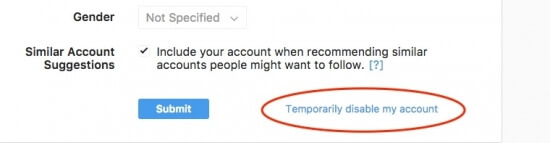
  5. Then, scroll down and click on the Temporarily Disable My Account menu usually in blue.
  6. After entering the new page, don't forget to choose the reason to deactivate temporary Instagram. Then enter your account password again. Automatically the Temporarily Disable Accound button will activate itself.
  7. Then click the Yes button to continue the next command.
  8. You will automatically exit your Instagram account. If you want to reactivate the Instagram account again, you must open it first through the browser.

#2: Disabling Permanent Instagram Account


This method is used only if you want to permanently delete an Instagram account. You cannot restore or reactivate it as in a temporary disable method


  1. As well as deactivating a temporary Instagram account, you also have to login to the Instagram account that was opened in the browser that was on your cellphone.
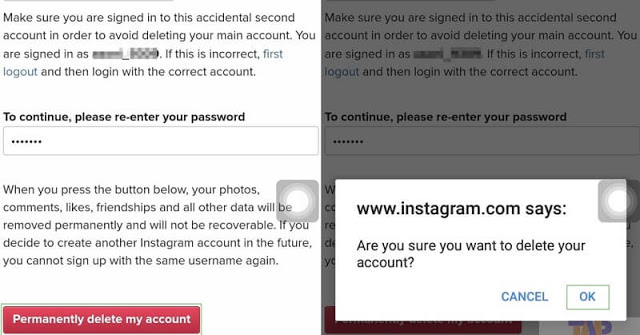
  2. Then you will be faced with the Delete Your Account page , then select your reason for deleting this account, then enter your Instagram account password again.
  3. After you have finished entering your Instagram account password, then click the Permanently delete my account button usually given a red color.
  4. To continue the command, press the OK button to delete your instagaram account.
  5. If you want to try entering again to the Instagram account that you deleted earlier, a notification will usually appear which is usually red.

That's how to disable Instagram accounts that can be done in two ways, temporarily and permanently. But keep in mind, before you delete your Instagram account permanently think again and again to do it.

Conclusion


Deactivating Instagram temporarily will make you unable to open your account for just a few days, whereas if you want to delete your account permanently, you will lose your Instagram account.

Along with photos and videos that you have uploaded, and even worse your username and email cannot be used to create a new Instagram account. So to delete it permanently you need to think about it again. May be useful.

Although it comes as an image-based social media, Instagram often displays posts that have captions that are interesting enough to be captured or redistributed.

But unfortunately, this is not easy to do, because Instagram does not feature select text and copy-paste features to copy the writings of Instagram captions.

In this case, you can actually use the screenshot feature to save it in the form of an image. However, for those of you who want to copy it in text form, you can follow the steps below.

How to Copy a Caption on Instagram


  • First of all, you can open an Instagram post that you will copy the caption
  • After that, you can open additional options by tapping the three-point icon located in the top right corner of the post
  • If several options appear, you can choose the Copy Link option to copy the URL address of the post After successfully copying the URL, moving to the browser application that is your mainstay, in this case I prefer to use Google Chrome
  • Paste the URL address that was successfully copied into the provided column followed by pressing the enter button
  • Posts and captions and comments will be displayed on the page, in this case if you are asked to log in, you can ignore it
  • After that, you select the Caption that is displayed by pressing a few moments of the writing until the select text appears (two needle icons)
  • You can move the needle to determine which part you want to copy
  • When finished, release the needle and select the COPY option if it appears
  • If not, you can repeat it to choose which part of the caption to copy

Up to this step, you can now copy the caption from Instagram posts. Furthermore, you can wisely utilize the results of the copy.

You can use the results of the copy of the Instagram caption by using the paste or paste feature that is on your device on some other applications.

Suppose you want to use a caption to upload Instagram posts, you can make uploads as usual. But when filling in the caption, you can press a few moments in the column provided to bring up the PASTE option.

After that, you can choose the option, and upload Instagram posts as usual. But it should be noted, if the caption belongs to someone else, you should ask permission to distribute it again.

In addition, you can save the caption in other text editor applications, in almost the same way, which is to hold a tap on the screen until the PASTE option appears and select that option.